

Troubleshooting ODBC Driver
Version 8.0.0.490
WhamTech
ODBC Driver Diagnostics Turn
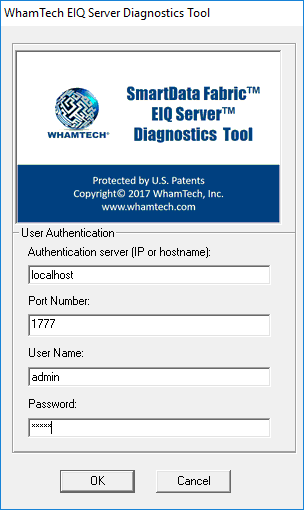
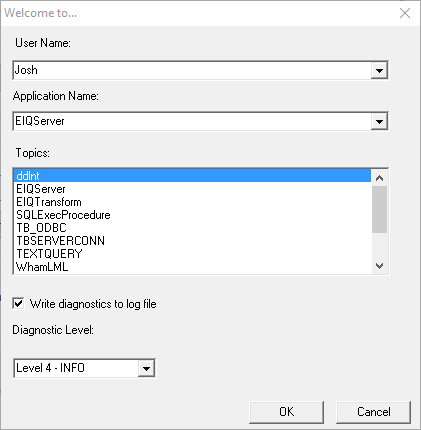
ON WhamTech ODBC Driver Logs in EIQ Diagnostics Tool Run
the Client Application with Diagnostics ON Follow these
steps to troubleshoot the WhamTech ODBC Driver: ·
Close any EIQ ODBC client Application (TOAD,
Excel, etc.) if they are running. ·
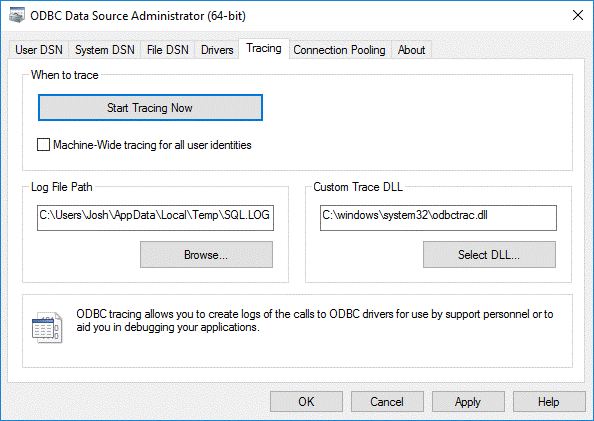
Start ODBC Tracing from the ‘ODBC Data Source
Administrator’: o Save
and/or clear the exiting SQL.LOG file. o Click
'Start Tracing Now'. Select the following logs in the EIQ Diagnostics Tool ·
Xxxxx_EIQ_ODBC ·
Xxxxx_WHAMNAPI_TOAD (inplace of TOAD it may contain the actual TOAD Analytics
application name) ·
Xxxxx_WHAMNAPI_SQLTrace_TOAD
inplace of TOAD it may contain the actual TOAD
Analytics application name) ·
Xxxxx_WHAMNAPI_EIQServer ·
Xxxxx_EIQ_Server ·
Make sure to select 'Write diagnostics to log
file'. For additional help capturing the diagnostics, see EIQ Diagnostics Tool help. ·
Save and/or clear the log files under “C:\Program
Files\WhamTech\Log\” ·
Run the ODBC Client Application ·
Once you find the problem, close the Client
Application. ·
Save the Diagnostic and ODBC Trace logs and send
them to WhamTech technical support. WhamTech ODBC Driver Diagnostics
Turn
ON ODBC Tracing
Turn
ON WhamTech ODBC Driver Logs in EIQ Diagnostics Tool
Run
the Client Application with Diagnostics ON
Copyright
© 2026 , WhamTech, Inc. All rights reserved. This document is
provided for information purposes only and the contents hereof are subject to
change without notice. Names may be trademarks of their respective owners.